Showing posts with label Business VoIP. Show all posts

Saturday, September 7, 2013

VoIP Business Products and Services from 8x8

8x8 provides business phone service and cloud contact center solutions. It is one of the largest VoIP service providers in the US which offers integrated voice, video and mobile unified communications solutions for small to medium-sized business and distributed enterprise customers.

This is a review post of various products from 8x8, your business can run smoothly by using these products whatever the size is, it does not matter. 8x8 helps to provide your customers a better service, work smarter and conduct business anywhere, anytime. From hosted VoIP phone service to hosted contact centers to unified communications, our services are easy to use, incredibly advanced and less expensive than traditional solutions. 

Complete Business Phone System:

  • Fortune 500 business features: With Virtual Office, you get all the business features that Fortune 500 companies have come to know and appreciate, including auto attendant, corporate directory, music-on-hold, conference bridge, and ring groups to name a few included!
  • More calling features: Enjoy all the standard features you had with your old service, without paying extra for them: personalized voicemail, 3-way calling, caller ID, call waiting, transfers, call forwarding, and many more. Plus, you get an online dashboard to more easily manage your communications with call history, voicemail notification, calling from your PC etc.
  • Freedom and mobility: Take your Virtual Office extension anywhere you like with our Virtual Office Mobile app for the Android, iPhone and iPad.
  • Outrageously affordable: Local, long distance, international calls are all so much more cost effective because we leverage the power of VoIP to reduce costs for you. And you won't need to buy or lease an expensive on-site PBX phone system either.
  • Get even more: Select from a wide range of optional features that will make the Virtual Office solution work even harder for you including Toll-free numbers, switchboard, traditional faxing etc. 8x8 also offer Virtual Office Pro that bundles Virtual Office phone service with online meetings, Internet faxing, and call recording.


Unify Your Communications:
8x8 Virtual Office Pro provides the same advanced phone features as Virtual Office, but then it takes your business to the next level by adding online meetings, call recording, and Internet Fax capabilities. These unified communication features help users connect with coworkers and customers around the world, boosting their productivity and your bottom line. Virtual Office Pro gives you all the benefits of 8x8 Virtual Office plus these benefits:

  • Online Meetings- Enhance Collaboration and Lower Costs: Virtual Office Pro includes Virtual Meeting web conferencing so you can hold unlimited web conferences with video for geographically dispersed employees and customers. Meeting participants can instantly share content for training, demos, and sales presentations right from their desktops, reducing travel costs and accelerating decision making.
  • Call Recording- Improve Employee Focus and Customer Service: Virtual Office Pro includes call recording so employees can focus on what's being said instead of taking notes. It's a great tool for training employees and documenting customer calls. This feature includes 1 GB of audio storage for up to 35 hours of recorded calls and meetings.
  • Internet Faxing- Send and Receive Documents from your Desktop: Internet faxing lets you send and receive faxes from any computer. Email notifications let you know right away when you receive a fax so you can respond quickly.


World-Class Virtual Contact Center:

  • Low start-up costs, low monthly fees: Implement with no hardware (except phones) to install or manage, just one low monthly fee.
  • Advanced call center features: Empower your team with advanced capabilities like skills-based routing, multimedia queuing, and real-time and reporting.
  • Your agents, anywhere: Unite local and remote agents under one virtual call center. All information is routed through the hosted call center application, so you can establish routing rules and agent groups without limiting you to a single physical location.
  • Get started quickly: Deploying a call center is now fast and easy; the jumpstart program of 8x8 gets you up and running fast.
  • Change is good: Configure your call center or make changes on the fly, without any assistance from your IT department. If you have a telesales group, a technical support helpdesk, or a customer service department, 8x8 has a solution for your business.


Virtual Meeting:

  • Unlimited Meetings: With Virtual Meeting, you can have an unlimited number of meetings a month for an unlimited duration.
  • 15 (or 50) participants per meeting: Standard package of 8x8 includes up to 15 participants per meeting, with the option to add more participants at a minimal cost on an as needed basis. Or you can choose our 50-participant plan.
  • No plug-ins required: All you need is a web browser. No plug-ins, downloads or hardware required.
  • Seamless integration with 8x8 Virtual Office and Virtual Office Pro: Virtual Meeting is available in the 8x8 Virtual Office Online portals with automated corporate directory integration. Sharing has never been easier- share your desktop, a portion of your desktop, or an application – you choose. Plus, you can pass desktop sharing to other participants.
  • Features to get excited about: Record meetings and download them FREE. Enjoy integrated VoIP and chat. Invite new participants while a meeting is in progress. Select flexible call-in numbers from around the world and more!


Video Conferencing in the Cloud:

  • 8x8 Cloud Conferencing changes everything. With 8x8 Virtual Room, video conferencing is:
  • Accessible to Everyone: Now video conferencing goes way beyond the boardroom. 8x8 Virtual Room works with video systems and video phones as well as computers with webcams. So everyone can be included, everyone can collaborate and your whole company benefits.
  • Simple: Video conferencing doesn't have to be so complicated. 8x8 Virtual Room gives your company its own private conference room in our cloud. You can instantly schedule video conferences online and participants join by dialing in or clicking a link in their email invitation.
  • Reliable and Available: Video conferencing has a reputation for being touchy and unreliable. With 8x8 Virtual Room, it just works. The 8x8 network has built in redundant systems to help ensure reliable, always-on performance.
  • Affordable: With 8x8, you can hold unlimited video meetings for up to 15 participants for one affordable flat monthly fee without worrying about per-minute or per user fees.
  • Leverage Video Investments: If you already own Polycom VVX or HDX equipment, talk to 8x8 about how you can get more out of it for less money, with 8x8 Virtual Room.


Thanks a lot for reading, for further details please visit 8x8 Inc.

Other related posts:

Monday, August 26, 2013

Advanced Calling Features from Phone.com

VoIP (Voice over Internet Protocol) is a method for taking analog audio signals, like the kind you hear when you talk on the phone, and turning them into digital data that can be transmitted over the Internet. Phone.com provides VOIP phone solutions that enable your business to stay connected and sound professional. With customizable VOIP business phone systems and VOIP home phone systems, it's easy to find a VOIP solution to fit all your needs. Make it exactly what you want; you can communicate when you want, where you want, and how you want.

Send Calls to any Number or Phone using Phone.com VoIP:
All incoming calls are automatically routed based on your customized settings in your account control panel. Calls can be routed to your phones based on the day, time or even the Caller ID of the incoming call. You're not limited to just phones, Using Phone.com you can send calls to:

  • Voicemail - have your messages sent to you as an mp3 file
  • Custom greetings - create your own audio messages
  • Menus - make a set of options users can select
  • Your computers send and receive on your desktop and much more.


Phone.com VoIP provides lots of calling features for both Business and Home services. Get the technology and flexibility to setup a custom phone service for anyone who uses a phone. See the below included features from Phone.com:

Toll Free Numbers:
You can select a Toll Free number and can activate it instantly. Choose from 800, 888, 877, 866 and 855.

Local Numbers:
Select a local phone number in any area code in the US.

Global Numbers:
You can choose an international phone number from over 48 countries in the globe.


Extensions and Voicemail service:
Add unlimited extensions, each with voicemail, an address book and separate login information for individual management.

IP Phones and Devices:
You can choose your own device from Polycom, Cisco and Panasonic phones and devices.

Custom Greetings and Hold Music:
Record your company greeting or choose free professional pre-recorded hold music.

Conference Calls:
Host conference calls with up to 500 attendees using your own dedicated conference bridge number.


Caller Menus (IVR) and Queues:
Give your callers menu options to connect to your staff and departments by pressing a key on their keypad.

Fax - Send and Receive:
Send and receive faxes using your desktop. Incoming faxes are converted into a PDF files and emailed to you.

Standard Calling Features:
Phone.com includes some popular calling features including Forwarding, Blocking and Screening.


Premium Features provide from Phone.com:

Caller Analytics:
Incoming caller information collected and divided into 6 easy to use data categories like demographics, technology, behavior and social status.

Voicemail Transcription:
Read your voicemail rather than listen to the actual message. Have your voicemail messages transcribed from voice to text and emailed to you.


Phone.com Communicator:
Use your personal computer as a phone to place and receive calls using the next generation softphone application from Phone.com.

Premium Hold Music:
Choose from 5 Premium channels with hundreds of fully licensed and commercial free tracks by well known artists including The Beatles, Bob Marley, Jay Z and many more.

Call Recording:
Record all calls within your account or by individual phone number. Recorded calls are stored in your account and can be reviewed and saved anytime online.


Professional Recording Services:
Everything from script consultation, professional voice talent, licensed music, studio production and ongoing support.

iNum Global Numbers:
iNum are international numbers not tied to a country or city. Keep them wherever you want go in the world. iNums are reachable from a growing list of networks.


What do you need to use Phone.com VoIP?
To use Phone.com service, you'll need a computer to configure settings and an existing phone to receive your calls. You can also purchase an IP Phone or use our Communicator Softphone application. Certain features of Phone.com service require the use of a high-speed Internet connection. Your account configuration will determine your needs.

You need a high speed Internet to:
Place and receive calls on a device (adapter or IP phone)
Place and receive calls using Softphone software
Edit your account settings in your control panel

You DON'T need high speed Internet to:
Receive forwarded calls on an existing phone (mobile, home, office, etc)
Route incoming calls according to your account settings.

Thanks a lot for reading this, for further details please visit: Phone.com

Other related posts:

Friday, September 30, 2011

Wholesale VoIP Solution

The birth of Voice-over-IP technology in late 1990s and its rapid growth in early 2000s, have resulted in the proliferation of many alternative telecom providers. Those providers have introduced a number of innovative communications services such as calling cards and callback which relied on call origination and termination over the Internet.

The growing number of new telecom providers led to increased demand for traffic aggregation services and as a result the Wholesale VoIP business was born. Wholesale VoIP providers act as traffic aggregates and/or traffic exchanges for their customers.

They sign up contracts with both retail and wholesale VoIP providers and act as a middle man for call origination and termination services. When partners send traffic to the Wholesale VoIP provider, he/she reroutes it to other partners for termination and makes profit from the difference in negotiated rates.


Business Solution
 
PROVIDER Softswitch will offer end-to-end, cost-effective and scalable Wholesale VoIP solution. That solution will feature powerful billing, flexible routing, and proven interoperability with equipment from other leading VoIP vendors.

Because all solution components will be developed by PROVIDER and Softswitch manufacturer we can eliminate integration issues and for that we can quickly start and/or expand our Wholesale VoIP business while enjoying high return on investment.


How will the solution work?

PROVIDER Experience
  • PROVIDER will receive VOIP Traffic request from Partner 1 for termination.
  • Then PROVIDER Softswitch will accept the traffic and will send authorization request to PROVIDER VoIP Billing server. The VoIP billing server will verify the account balance of Partner 1 and will authorize call termination.
  • PROVIDER Softswitch will re-route the traffic to Partner 2, hiding traffic source information.
  • Upon completing the call, the PROVIDER VoIP Billing server records will debit the account of Partner 1 and will record CDR record of the call.


Solution components are required
 
Core elements of PROVIDER Wholesale VoIP Solution include:
  • PROVIDER VOIP Billing Server is a robust billing server that provides our customers with all necessary tools to successfully implement a wide spectrum of VoIP business models.
  • PROVIDER Softswitch is an advanced VoIP softswitch that provides our customer with secure and reliable peering between their own networks and the VoIP networks of their business partners.
Other Posts:
CallShop Solution

Wednesday, September 14, 2011

Calling Card Business - Using VoIP Technology

Traditionally, the telecom sector has been one of the most lucrative market segments in both emerging and developed economies. But also traditionally, that sector has been protected by heavy local regulation. Nowadays, however, many countries have either started or are considering deregulation of their telecom sectors. Such strong trend towards liberalization of the sector, coupled with the emergence of new technologies for cost effective transport of voice data, and namely Voice-over-IP, opens up new revenue generating opportunities for entrepreneurs all over the world.


The calling cards business model offers a relatively low cost entry into the lucrative telecom market segment. The essence of the calling cards business model is to creatively segment customers by various demographic and/or behavioral characteristics and to design calling cards offerings to meet their specific calling needs. The calling cards business typically attracts entrepreneurs who want to enter the VoIP market, businesses with established retail distribution channels, and service providers who want to diversify their revenue streams.

 
Business Solution
Aiming PROVIDER as a leading VoIP service provider, PROVIDER has to offer integrated, scalable, and cost-effective calling cards solutions. Such solutions will feature powerful billing capabilities, intuitive CRM (Customer Relation Management) web portals, and proven interoperability with equipment from other VoIP providers. Because all solution components are developed by the engineers of PROVIDER and Softswitch Billing company, that reduces the need for integration costs at the PROVIDER VOIP service level which saves money for PROVIDER and improves our return on investment.


How will the solution work?
User experience
  • The user will purchase a calling card from a retail or online store.
  • The user will dial the local or toll-free access number printed on the card.
  • The user will hear a voice prompt, asking him to enter his PIN number.
  • The user will then enter the PIN number printed on the calling card using the phone dial pad.
  • He will hear his account balance and is invited to make a call.
  • The user will dial the number and will get connected.

 
Provider experience
  • When the user calls, PROVIDER Gateway, which is connected to the access number, will answer the call and send IVR prompts to the caller, inviting him to enter his PIN number.
  • PROVIDER Gateway will read the PIN and will send an authorization request to PROVIDER VoIP Billing
  • PROVIDER VoIP Billing will verify account information and will authorize the call if the user has sufficient balance.
  • Then PROVIDER Gateway will announce to the caller his account balance and will invite him to dial a destination number.
  • Then PROVIDER Gateway will pass the destination number to PROVIDER Softswitch and will request routing information.
  • PROVIDER Softswitch will return to PROVIDER Getaway the IP address of the remote gateway and Getaway will connect the call.
  • During the conversation, Getaway will convert voice signal to data packets and will route them to the terminating gateway (owned by the call termination provider) and vice versa.
  • Upon call completion, PROVIDER VoIP Billing will record complete CDR information for the call and then debit the user account with accumulated service charges.


Solution components are required
 
Core elements of PROVIDER's Calling Cards Solution include:
  • PROVIDER VoIP Billing, will be a robust billing server that provides us with all necessary tools to successfully implement a wide spectrum of VoIP business models.
  • VoIP Gateway, will be a flexible switching device that provides us with universal IP-PSTN switching, high flexibility and remote feature upgrade ability.
  • PROVIDER Softswitch will be an advanced VoIP softswitch that provides secure and reliable peering between our own networks and the VoIP networks of our business partners.

Related Topic:

Saturday, April 30, 2011

Overall Monitoring of gPlex Reseller

Some basics and common tips and techniques to monitor gPlex Level-3 / Master reseller or even level-2 or level-1 reseller:

Current Calls:
  • Click on the Current Calls at the bottom of the left side menu to see active or running calls in your reseller.
  • How many calls are currently being connected will be shown (see picture).
  • Click Show details to see more details of every call.


  • After Clicked on Show Details the following screen will appear.
  • Here you will see every active call of your reseller with detail. Record for every call (User, PIN number, Destination number, Call duration etc) will be shown.


Call Summery:
  • Click on Call Summery, total call duration for every destination will shown (see the picture below).
  • Last Day: See previous or last day's call summery.
  • This Week: Call summery of running week (previous 7 days).
  • Customized report: Enter start date and end date to see specific day / days report of Call Summery.


Search Log:
  • Below Home click on the Search Log to see details call log (see the below screen shot).
  • Suppose, you want to see one of previous day's or current days or more than one days details call record for any user's or any PIN number's.
  • Select the reseller from the top or type the PIN number in the provided field.Now enter the beginning date and end date and press Submit button. To see on day's record, type start and end date same. All records of the day / days will shown for the selected user, PIN number, destination, destination number etc.


Reseller Transaction History:
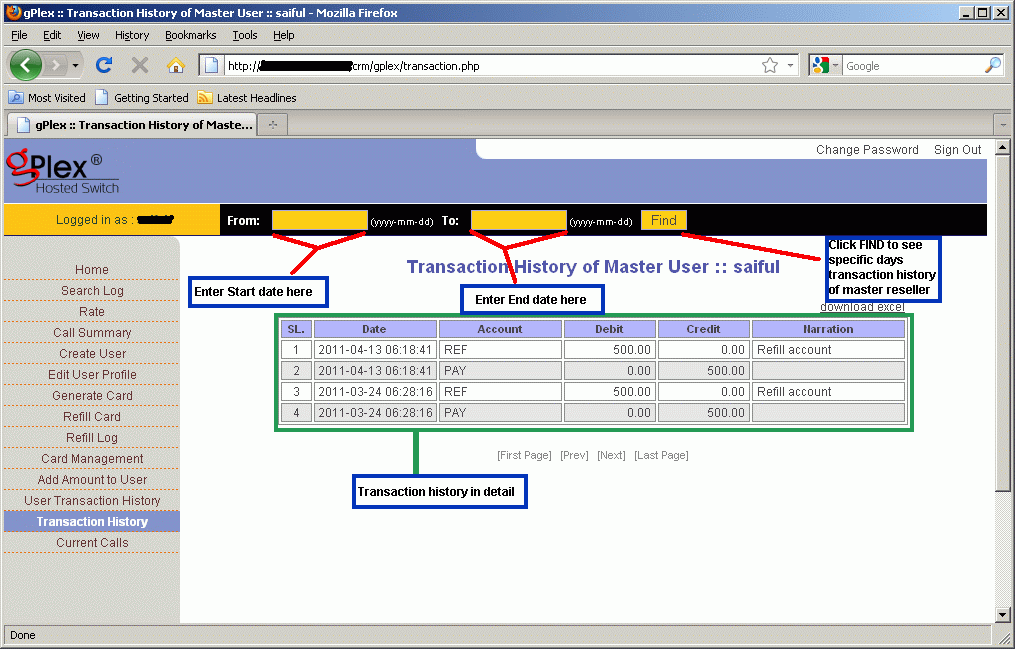
  • Click on the Transaction History. Enter start date and end date in the provided field and press Find. All transaction details of your own reseller will appear. This history can't be edited of changed. In the remarks you will see whatever your provider writes.
  • Date, time, amount, remarks / memo for every payment will be show.

The maintaining process is very easy in gPlex hosted switch. These are most common tips to regular monitoring your own Level-3 / Master reseller. Read other related posts (VoIP Tutorial) in the blog including VSR tutorial also.

Other related posts:
Rate Management in gPlex

Monday, April 25, 2011

Rate management in gPlex

Another important in gPlex reseller account is the Rate Management. Managing rate plan in gPlex is little bit different than typical VSR System (VoIP Switch Reseller System). In gPlex user can't create any rate plan / tariff of his own like VSR. But if Admin add more than one rate plan to resellers account than Master User / Level-3 reseller holder can set more than one rate plan for the same user account by adding ditional prefix.

After reading this post this process will be much easier for any new Level-3 / Master reseller user.

Rate Plan:
  • Click on Rate at the left side navigation menu. The following screen will be shown.
  • At the top you can see how many Rate Plan has been added to your reseller. Select any rate plan.
  • In the list you will see Name, Code, Carrier Rate, Card Rate and Route column.
  • Carrier rate means your current carrier buying rate per minute from your provider. This rate can't be edited from Level-3. And Card rate means your selling rate to your user. This rate can be changed from Master Reseller.
  • Click on Edit to change the Card Rate. And Click on Show to see the route or added destination prefix.
  • You can filter your search to find out desired destination. Enter some of the first letters of the destination in the name field (see top-right side) and press the FILTER button.


Changing Card Rate:
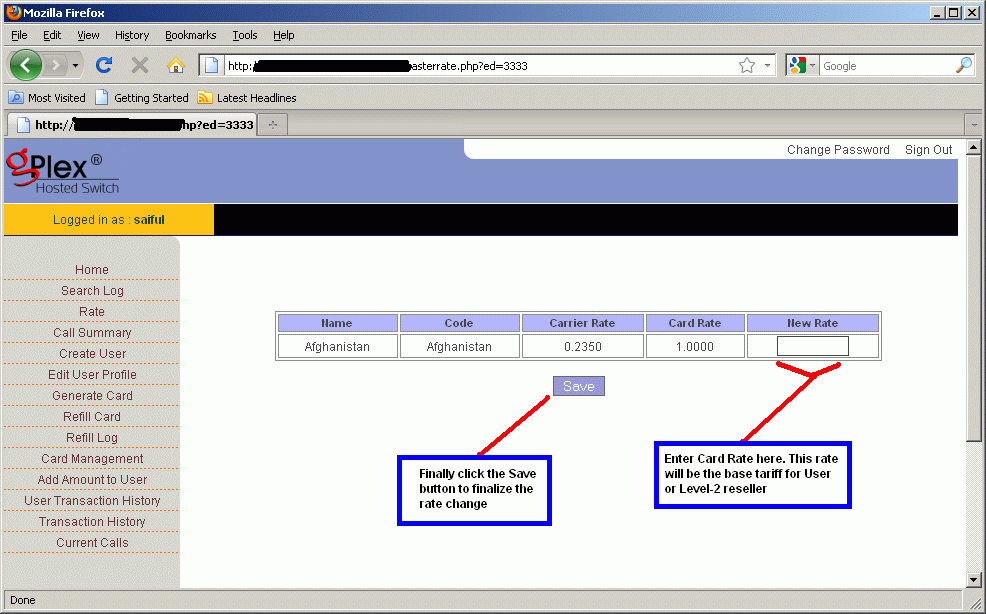
  • After clicking on the Edit link for any destination, the following screen will appear (click to enlarge).
  • In the field New Rate enter new rate for the destination which will be Level-2 / User's base tariff.
  • Finally click on the Save button, changed rate would be saved.


Show Dialing Plan:
  • After clicking on the Show link for any destination you will see a new window like the following picture.
  • Dial Digit means dialing plan (code) for the destination.


Add new rate plan:
  • Click on the Edit User Profile from the left side menu you will see all details of the clicked user. At the bottom of the page beside Rate Plan there's a button "ADD". Click on this to add additional rate plan.
  • Remember the user's default rate plan. Now select other rate plan (See the picture below) except the default.
  • In the Dial in Prefix field enter some prefix. For example, if the default rate plan for Bangladesh is 88 for Rate plan A. Than to add rate plan B as additional plan enter 00 on the Dial in Prefix field and client will dialer 88..... and 0088...... (this way). When they dial with 88 the call will go through Rate plan A and for 0088 the call will go through Rate plan B.
  • After adding new rate plan click on the Add button at the bottom of the page.


For other further details fill free to contact us or if you have any comments just type your comments below, it will be highly appreciated.
Diroo

Other related posts:

Tuesday, April 5, 2011

Level-1 and Level-2 Reseller in gPlex

How to maintain Level-2 reseller and Level-1 reseller in gPlex Switch reseller system, I am going to discuss briefly for new gPlex Switch reseller users and sub-users in this post. Some basics about how to monitoring Reseller account will be discuss also.


gPlex Reseller Level-2 / User:
  • Type your level-2 login address (for gPlex every level has different login address) in the address bar of your browser and press ENTER.
  • The following page will appear (follow the screen shot).
  • Enter your User name in the User field.
  • Enter your Password in the Password field and press the Submit button.
  • You will enter your Level-2 reseller Homepage.


User / Level 2 reseller Homepage:
Take a look at the following screen shot (Click on this picture to enlarge). At homepage you will see Today's Report and Account Status. In Today's report you will see your total Sub users (level-1) total calls duration, revenue, reseller costs, ASR (Average Success Rate), ACD (Average Call Duration). You can see previous day's report or before that day's report or even report of last week or as you like. In the Account Status your will see your own account balance, Used balance, remaining balance etc.
Take a look at the left side navigation menu.
  • Rate: Click to see the your reseller rate plan.
  • Card Management: Click to see your generated cards, add balance to card, lock or unlock card.
  • Create Sub user: Level-1 reseller or Sub-user can be created from here.
  • Sub User List: List of all created Sub-user or Level-1 reseller account.
  • Refill to Sub User: Add amount or balance to sub user.
  • Sub User Transaction: To see details payment history of Level-1 user.
  • Generate Card: New Card generation
  • Refill Card: Refill or recharge specific card / PIN.
  • Refill Log: Card refill / recharge history.
  • Transaction History: Your Reseller Level-2 transaction / Payment history.
  • Current Calls: Click to see current active calls with details.


gPlex Reseller Level-1 / Sub User:
  • Type your level-1 Login address (for gPlex every level has different login address) in the address bar of your browser and press ENTER.
  • The following page will appear (follow the screen shot).
  • Enter your Sub-user Name in the User field.
  • Enter your Password in the Password field and press the Submit button.
  • Your Level-1 reseller Homepage will appear.


Sub User / Level 1 reseller Homepage: 
Take a look at the following screen shot (Click on this picture to enlarge). After logged in your homepage you will see Today's Report and Account Status. In Today's report you will see no of total calls, total minute, bill, ASR (Average Success Rate), ACD (Average Call Duration). You can see previous day's report or before that day's report or even report of last week or as you like. In the Account Status your will see your own account balance, Used balance, remaining balance and Status (Active / Inactive).
Take a look at the left side navigation menu.
  • Report: Click to see see report of daily usage.
  • Rate: Click to see the your reseller rate plan.
  • Generate Card: New Card / PIN generation
  • Card Management: Click to see your generated cards, add balance to card, lock or unlock card.
  • Refill Card: Refill or recharge specific card / PIN.
  • Refill Log: Card refill / recharge history.
  • Transaction history: Your Reseller Level-1 transaction / Payment history.


Other related post:

Tuesday, March 15, 2011

Monitoring VoIP Switch Reseller Level - VSR

If you want to run your VSR Reseller account you need to monitor it regularly. In this post I will discuss about some basic and important monitoring operations for VoIP Switch Reseller program (Level-3 and Level-2). For those who are new to VSR System and getting some interests to reading this post are requested to read VSR Basics.

The below screen shot is of Reseller Level-3 or Level-2 homepage. Click on the picture below to enlarge it and understand more details..


Active Calls:
Click on the Active Calls link from the left side menu. You will see the total number of concurrent calls including destination number, origination reseller and PIN, Total talk time etc. Click on the blue color REFRESH button at the right side, every time the page will updated.


Base Tariff:
Click on the Base Tariff link to see your buying rate of your voice carrier (route, minute etc). You will see all destinations including Name, Prefix, Rate per minute, and some other info. Check regularly weather your provider has updated it or not.


Changing Rate / Tariff
Its better to create different rates for different users. Since you are going to do some business with this, I think !
After creating a new tariff click on the tariff name at left side. Page like the following screen shot will appear. Click on the ADD button to add new destination. 
To change any rate just click on the destination name, another new page will appear.


Changing Properties:
You will see different fields including Destination description/name, Rate per minute, Prefix etc. you can edit all these fields. After changing the properties click on OK button at the below of the page.


Add Payment on Reseller:
After clicking on the Show link below "Reseller" a page including the list of all resellers. Click on the reseller Login name.


Click on the Add Payment Button. A new window will appear, enter your amount, type, date, description  and press Add button. Than click on Close.


Own payment history
On the homepage there is a link named Payment History. Click on that link to see total payment history of your own reseller. How much your provide gave you, when etc. You can see payment report for specific time. Enter "from" and "to" date correctly and press Apply button.


Read other related to VSR System:
Create Single and Multiple GK/Register Clients
Create Single and Multiple PC to Phone Clients
Share/Bookmark