Showing posts with label Bangladesh VoIP. Show all posts

Friday, September 30, 2011

Wholesale VoIP Solution

The birth of Voice-over-IP technology in late 1990s and its rapid growth in early 2000s, have resulted in the proliferation of many alternative telecom providers. Those providers have introduced a number of innovative communications services such as calling cards and callback which relied on call origination and termination over the Internet.

The growing number of new telecom providers led to increased demand for traffic aggregation services and as a result the Wholesale VoIP business was born. Wholesale VoIP providers act as traffic aggregates and/or traffic exchanges for their customers.

They sign up contracts with both retail and wholesale VoIP providers and act as a middle man for call origination and termination services. When partners send traffic to the Wholesale VoIP provider, he/she reroutes it to other partners for termination and makes profit from the difference in negotiated rates.


Business Solution
 
PROVIDER Softswitch will offer end-to-end, cost-effective and scalable Wholesale VoIP solution. That solution will feature powerful billing, flexible routing, and proven interoperability with equipment from other leading VoIP vendors.

Because all solution components will be developed by PROVIDER and Softswitch manufacturer we can eliminate integration issues and for that we can quickly start and/or expand our Wholesale VoIP business while enjoying high return on investment.


How will the solution work?

PROVIDER Experience
  • PROVIDER will receive VOIP Traffic request from Partner 1 for termination.
  • Then PROVIDER Softswitch will accept the traffic and will send authorization request to PROVIDER VoIP Billing server. The VoIP billing server will verify the account balance of Partner 1 and will authorize call termination.
  • PROVIDER Softswitch will re-route the traffic to Partner 2, hiding traffic source information.
  • Upon completing the call, the PROVIDER VoIP Billing server records will debit the account of Partner 1 and will record CDR record of the call.


Solution components are required
 
Core elements of PROVIDER Wholesale VoIP Solution include:
  • PROVIDER VOIP Billing Server is a robust billing server that provides our customers with all necessary tools to successfully implement a wide spectrum of VoIP business models.
  • PROVIDER Softswitch is an advanced VoIP softswitch that provides our customer with secure and reliable peering between their own networks and the VoIP networks of their business partners.
Other Posts:
CallShop Solution

Wednesday, August 3, 2011

Ezzy Dialer - Works in blocked firewall network


In previous some of my posts I have discussed about some Mobile Dialer which works fine in Middle east countries (KSA, UAE, Oman, Qatar etc). These are iTel Mobile Dialer, gPlex Mobile Dialer. In this post I am going to discuss another mobile dialer called Ezzy Dialer which has become a good VoIP solution in the world.

The Ezzy dialer is a highly scalable VoIP carrier solution that works fine in Symbian operating system (2nd, 3rd, 5th edition) enabled handset. VoIP calls can easily make from Symbian OS supported handset from anywhere around the world.

The basic requirements to run Ezzy Mobile Dialer:
  • Internet connection (GPRS / EDGE / 3G / Wi Fi) enabled handsets.
  • Symbian operating system supported handsets.


Some special features of Ezzy Dialer:
  • Users can get crystal clear voice quality while making VoIP phone calls using Ezzy dialer.
  • It works fine in Low Bandwidth for some of its special technology called CNG (Comfort Noise Generation), VAD (Voice Activity Detection), PLC (Packet Loss Concealment) etc.
  • Works with SIP (Session Initiation Protocol) based Soft Switches and any type of Firewall network.
  • Provide details call log history around 50 call records.
  • Incoming and Outgoing call facility (IP to IP), using which user can make free and low cost call.
  • User friendly or easy to use interface.
  • Supports various codec systems like: G-729, G-711, G-723, GSM, AMR-NB etc.
  • Works with various internet connectivity’s like: EDGE, GPRS, 3G, Wi-Fi, VPN Access points etc.
  • User can see their balance on the screen and can hear their remaining balance using the IVR facility.
  • Calls can be make finding numbers directly from handset address book or from the call log history.
  • Loudspeaker / Speaker phone facility.
  • User can switch emergency to other mobile application while talking to others using dialer.
  • GSM call alert while VoIP call is running, this is another special features of Ezzy dialer which most dialer can’t provide.
  • External or internal memory of your mobile handset can be used to install the Ezzy dialer application.
  • The Ezzy dialer if flexible to install and it never conflict with other applications.

Supported handset: Below is the list of all supported handsets with Ezzy Dialer.

NOKIA:
N70, N71, N72, N73, N75, N76, N77, N82, N85, N91, N92, N93, N93i, N95, N95_8gb, N96, N97, N97 Mini, 3250, 5228, 5230, 5235, 5530, 5800, 5800 Music Express, 6120, 6121, 6124, 6210, 6220, 6290, 6650, 6700, 6710, 6720, 6730, 6760, 6788, 6790, E50, E51, E52, E55, E60, E61, E61i, E62, E63, E65, E66, E70, E71, E72, E75, E90, C6, X6, X6_8gb, X6_16gb

SAMSUNG:
G810, SGH 1400, SGH 1450, SGH 1520, SGH 1550, SGH 1560, GT i7110, GT i8510 Innov8, 1870

For further details about Ezzy Dialer and list of latest supported handset go to their site.


Other related topics:

Saturday, June 25, 2011

JAJAH Direct - You pay as you go...


Using JAJAH.Direct you can get a local number provided by JAJAH and can make calls directly to any mobile and land phone number in the world. You can save this number to your phone book and don’t need to never dial long distance again and again.

Just Log into your JAJAH account and go to “JAJAH.Direct Call”.
Enter the contact number of whom you want to make call and press “Get Local Number”. You will get a local number for every number you add.

To make call simply dial from your phone or mobile and start talking.

A JAJAH local number means when you dial to make call to a local number than JAJAH will directly connect you with your own international number. Now you can make call to this long distance number or any international mobile or land phone number you want and this number must be registered with JAJAH from which you want to make call.


Sign up for JAJAH Direct:
There is no such special fee to sign up for JAJAH Direct service, registration is absolutely free. After getting registered with JAJAH Direct you can make calls as usual JAJAH will give permission you to use other JAJAH services including Buttons, Mobile Web, Scheduled Calls etc. For more information’s click here.

Where to use:
This special service called JAJAH Direct currently can be used from more than 20 countries around the world with individual local number for every area. Calls can be make for more than 120 countries around the world. Click on the link for list of JAJAH Direct countries to determine if you are in a JAJAH Direct area. JAJAH authorities are regularly adding new areas and countries because this service is going to be popular day by day.

No extra fees:
There are lots of Mobile Phone operators or carries or provider offers nation wide rate plan to make calls any number in the countries at a flat rate. In this case, you need to just pay a local or flat rate or a per-minute fee for mobile use to call the JAJAH Direct number. But if you don’t have a nation wide calling rate plan than you can be charged a long distance rate to make call to number outside your area. If you’re not sure, check with your provider to see if you will pay a long distance rate to call a number outside your area code.
And there is not any maintenance fee to use JAJAH Direct unlike other VoIP Providers. The system is you pay as you go.

Some other features of JAJAH Direct:
  • You can make calls using the JAJAH Direct if you are in same country, local, state to state etc.
  • JAJAH offer same rate for every day, every time. There is no peak or off peak rate plan.
  • You can recharge your own account yourself, you can add additional funds to your account using your phone or go to www.jajah.com. Log into your account and click to “Pay Now” and follow the instructions.
  • To use JAJAH Direct service you need to unblock your called ID. To unblock your ID contact your provider because this method is different for different provider.
  • You can use Speed Dial function just like your regular mobile phone.
  • You can see all detailed call log / history. Log into your account, go to My Account and go to Call History.
  • You can safely top up account without any PCs. All transactions via PC or Mobile are strictly protected with the highest level of industry-based encryption.

Unlike Calling Card service JAJAH Direct is little bit different. Calling card service including many kind of hidden costs like connection fees, usage fees, daily fees etc. But JAJAH is not that type of service. With JAJAH Direct you pay as you go.

Sunday, May 8, 2011

Free VoIP Calls to Bangladesh, India using FastVoIP


Yes !
FastVoIP is now offering free calls to Bangladesh.  FastVoIP users can make free voip calls to Bangladesh Landlines. This free service includes some other countries including India Landlines also.

Lets find out how we can do this !

FastVoIP is one of the leading VoIP service provider in the telecommunication market in Europe and rest of the world. In one of my previous post I have discussed briefly about FastVoIP. Click the below link to read more about their service:
 
Free and Cheap Phone Calls using FastVoIP

There are lots of providers that are offering free voip phone calling service to various destinations across the world. Among all of these FastVoIP is little bit different and exceptional. Because they are mainly looks for their clients satisfactions.

This free calling including the following countries:
Bangladesh
India
Poland
Belgium
Singapore
Canada (+mobile)
South Korea
China
Spain
Germany
Sweden
France
Thailand
Hong Kong
Turkey
Italy
United Kingdom
Malaysia
United States (+mobile)
Netherlands

Among all these countries calling to Canada and United States of America are free in both Mobile and Landlines. But the rests of the countries are only for Landlines.

Of course there are some conditions apply !

To use free call to the above destinations you must create an account with FastVoIP and must deposit an amount (may be 7.5 US$ or 5 Euro - go to fastvoip.com for further details). This amount must be deposited in every month to keep this Free Calls promotion active.
 
Instructions:
Download FastVoIP
How to install FastVoIP
How to create an account
How to make calls

 
For further details go to FastVoIP.com


Related Posts:

Saturday, April 30, 2011

Overall Monitoring of gPlex Reseller

Some basics and common tips and techniques to monitor gPlex Level-3 / Master reseller or even level-2 or level-1 reseller:

Current Calls:
  • Click on the Current Calls at the bottom of the left side menu to see active or running calls in your reseller.
  • How many calls are currently being connected will be shown (see picture).
  • Click Show details to see more details of every call.


  • After Clicked on Show Details the following screen will appear.
  • Here you will see every active call of your reseller with detail. Record for every call (User, PIN number, Destination number, Call duration etc) will be shown.


Call Summery:
  • Click on Call Summery, total call duration for every destination will shown (see the picture below).
  • Last Day: See previous or last day's call summery.
  • This Week: Call summery of running week (previous 7 days).
  • Customized report: Enter start date and end date to see specific day / days report of Call Summery.


Search Log:
  • Below Home click on the Search Log to see details call log (see the below screen shot).
  • Suppose, you want to see one of previous day's or current days or more than one days details call record for any user's or any PIN number's.
  • Select the reseller from the top or type the PIN number in the provided field.Now enter the beginning date and end date and press Submit button. To see on day's record, type start and end date same. All records of the day / days will shown for the selected user, PIN number, destination, destination number etc.


Reseller Transaction History:
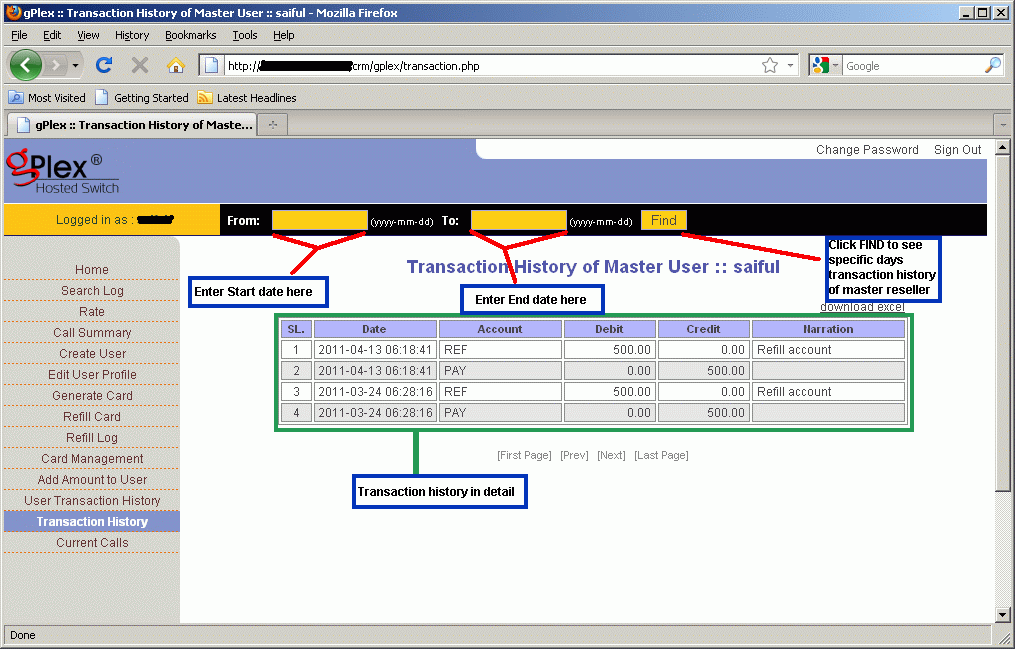
  • Click on the Transaction History. Enter start date and end date in the provided field and press Find. All transaction details of your own reseller will appear. This history can't be edited of changed. In the remarks you will see whatever your provider writes.
  • Date, time, amount, remarks / memo for every payment will be show.

The maintaining process is very easy in gPlex hosted switch. These are most common tips to regular monitoring your own Level-3 / Master reseller. Read other related posts (VoIP Tutorial) in the blog including VSR tutorial also.

Other related posts:
Rate Management in gPlex

Monday, April 25, 2011

Rate management in gPlex

Another important in gPlex reseller account is the Rate Management. Managing rate plan in gPlex is little bit different than typical VSR System (VoIP Switch Reseller System). In gPlex user can't create any rate plan / tariff of his own like VSR. But if Admin add more than one rate plan to resellers account than Master User / Level-3 reseller holder can set more than one rate plan for the same user account by adding ditional prefix.

After reading this post this process will be much easier for any new Level-3 / Master reseller user.

Rate Plan:
  • Click on Rate at the left side navigation menu. The following screen will be shown.
  • At the top you can see how many Rate Plan has been added to your reseller. Select any rate plan.
  • In the list you will see Name, Code, Carrier Rate, Card Rate and Route column.
  • Carrier rate means your current carrier buying rate per minute from your provider. This rate can't be edited from Level-3. And Card rate means your selling rate to your user. This rate can be changed from Master Reseller.
  • Click on Edit to change the Card Rate. And Click on Show to see the route or added destination prefix.
  • You can filter your search to find out desired destination. Enter some of the first letters of the destination in the name field (see top-right side) and press the FILTER button.


Changing Card Rate:
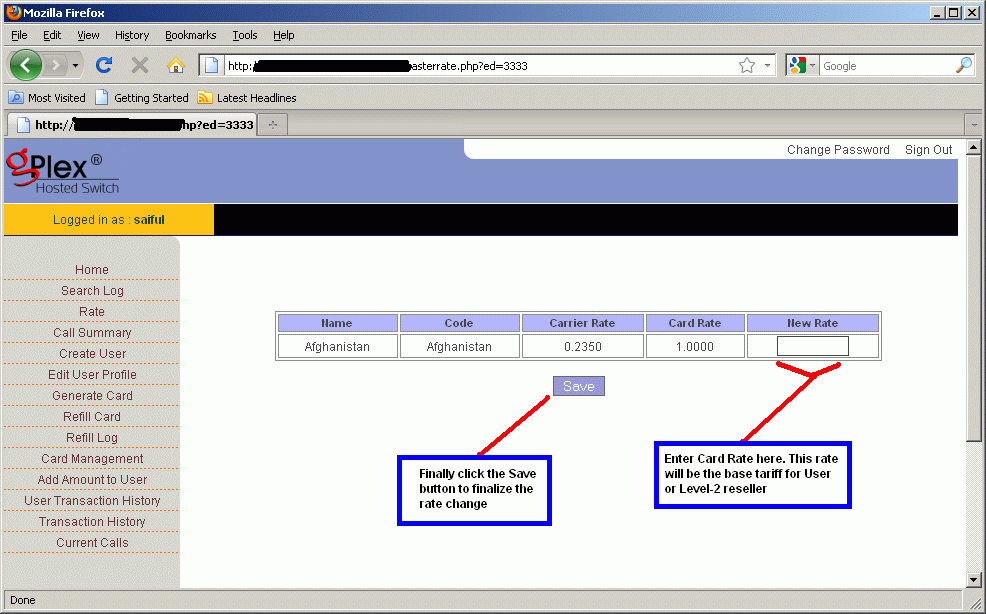
  • After clicking on the Edit link for any destination, the following screen will appear (click to enlarge).
  • In the field New Rate enter new rate for the destination which will be Level-2 / User's base tariff.
  • Finally click on the Save button, changed rate would be saved.


Show Dialing Plan:
  • After clicking on the Show link for any destination you will see a new window like the following picture.
  • Dial Digit means dialing plan (code) for the destination.


Add new rate plan:
  • Click on the Edit User Profile from the left side menu you will see all details of the clicked user. At the bottom of the page beside Rate Plan there's a button "ADD". Click on this to add additional rate plan.
  • Remember the user's default rate plan. Now select other rate plan (See the picture below) except the default.
  • In the Dial in Prefix field enter some prefix. For example, if the default rate plan for Bangladesh is 88 for Rate plan A. Than to add rate plan B as additional plan enter 00 on the Dial in Prefix field and client will dialer 88..... and 0088...... (this way). When they dial with 88 the call will go through Rate plan A and for 0088 the call will go through Rate plan B.
  • After adding new rate plan click on the Add button at the bottom of the page.


For other further details fill free to contact us or if you have any comments just type your comments below, it will be highly appreciated.
Diroo

Other related posts:

Tuesday, April 5, 2011

Level-1 and Level-2 Reseller in gPlex

How to maintain Level-2 reseller and Level-1 reseller in gPlex Switch reseller system, I am going to discuss briefly for new gPlex Switch reseller users and sub-users in this post. Some basics about how to monitoring Reseller account will be discuss also.


gPlex Reseller Level-2 / User:
  • Type your level-2 login address (for gPlex every level has different login address) in the address bar of your browser and press ENTER.
  • The following page will appear (follow the screen shot).
  • Enter your User name in the User field.
  • Enter your Password in the Password field and press the Submit button.
  • You will enter your Level-2 reseller Homepage.


User / Level 2 reseller Homepage:
Take a look at the following screen shot (Click on this picture to enlarge). At homepage you will see Today's Report and Account Status. In Today's report you will see your total Sub users (level-1) total calls duration, revenue, reseller costs, ASR (Average Success Rate), ACD (Average Call Duration). You can see previous day's report or before that day's report or even report of last week or as you like. In the Account Status your will see your own account balance, Used balance, remaining balance etc.
Take a look at the left side navigation menu.
  • Rate: Click to see the your reseller rate plan.
  • Card Management: Click to see your generated cards, add balance to card, lock or unlock card.
  • Create Sub user: Level-1 reseller or Sub-user can be created from here.
  • Sub User List: List of all created Sub-user or Level-1 reseller account.
  • Refill to Sub User: Add amount or balance to sub user.
  • Sub User Transaction: To see details payment history of Level-1 user.
  • Generate Card: New Card generation
  • Refill Card: Refill or recharge specific card / PIN.
  • Refill Log: Card refill / recharge history.
  • Transaction History: Your Reseller Level-2 transaction / Payment history.
  • Current Calls: Click to see current active calls with details.


gPlex Reseller Level-1 / Sub User:
  • Type your level-1 Login address (for gPlex every level has different login address) in the address bar of your browser and press ENTER.
  • The following page will appear (follow the screen shot).
  • Enter your Sub-user Name in the User field.
  • Enter your Password in the Password field and press the Submit button.
  • Your Level-1 reseller Homepage will appear.


Sub User / Level 1 reseller Homepage: 
Take a look at the following screen shot (Click on this picture to enlarge). After logged in your homepage you will see Today's Report and Account Status. In Today's report you will see no of total calls, total minute, bill, ASR (Average Success Rate), ACD (Average Call Duration). You can see previous day's report or before that day's report or even report of last week or as you like. In the Account Status your will see your own account balance, Used balance, remaining balance and Status (Active / Inactive).
Take a look at the left side navigation menu.
  • Report: Click to see see report of daily usage.
  • Rate: Click to see the your reseller rate plan.
  • Generate Card: New Card / PIN generation
  • Card Management: Click to see your generated cards, add balance to card, lock or unlock card.
  • Refill Card: Refill or recharge specific card / PIN.
  • Refill Log: Card refill / recharge history.
  • Transaction history: Your Reseller Level-1 transaction / Payment history.


Other related post:

Monday, February 28, 2011

How to create New Reseller Level-2 or Level-1 in VSR System

In my previous post VSR (VoIP Switch Reseller) - Level Basics  I have discussed briefly about some of the most common and basic operations of VSR System (VoIP Switch Reseller System). This post would help any beginner who are new to VSR System.

Today in this post I am going to discuss how to create new Level-2 or Level-1 reseller using VSR System. Level-2 can be created from Level-3 and Level-1 from Level-2. The process for L2 and L1 is same. So, this tutorial will help you hunting two birds using one bullet!

Take a look at the Screen shot of VSR Level-3 homepage for some basic ideas:


Add Tariff:
To create a new reseller at first you must create a new tariff which you can modify yourself. Just click on the Add Tariff link to add a new one. Adding a new tariff is very important, because you can create different tariff for different user / reseller. It will help you to modify easily individual clients tariff.
After clicking on Add tariff link a new page will appear containing Add Tariff heading. Just fill up the all required fields and click OK. You can define Pulse, Free minute, Add Surcharge etc here. After clicking on the OK button a new tariff will be added. See the following screen shot to get more idea. Click on the picture below to enlarge.


Adding Tariff Destinations or Properties in VSR:
Now add tariff properties (destinations) to your new added tariff. Click on the new tariff you made from the left side menu. Click Add.. details of tariff properties will appear. Add destination details (description, rate, pulse etc) and click OK. You can add more destinations depending on your Base Tariff or you can upload all destinations at same time by clicking on the Import link. Before import you must Export all the destinations and and save the file in you computer. Than you can edit all destinations. Its an easy process.


Add Reseller in VSR:
Now its time to add a new Reseller. Click on Add Reseller link on the Home Page. The following page will appear. Type reseller Login, Password, Identifier and fill up all the required fields. Select tariff from the right side. Select client type, you can select more than one (GK Register, Pc2Phone, Common Client etc..). Select the Active check box to activate the reseller. Below the tariff selection enter Clients limit. It can be 100000 / 999999 or more or any other amount. After filling up all he required fields click OK. Your new reseller will be added.


Add Balance:
The reseller is ready now. Now from the Home page click on the Show Reseller link. You will see the VSR reseller you created. Follow the following screen shot. Click on the reseller login name to add balance.


Click on the red color Add Payment button (highlighted) to add balance to the reseller. A new window will appear like the following screen shot.


After clicking on the Add Payment button the following window will appear. Write the Amount, select Type (prepaid / return), and enter description and press the Add button. Given amount will be added to the VSR reseller. Isn't it easy ?


I think this process will help you a lot, if you are a new VSR user. If you have further question you can mail me. mail1,  mail2


Other related and helpfull turorial:
Basics about VSR System
Create Single and Multiple GK/Register Clients
Create Single and Multiple PC to Phone Clients
Monitoring VSR Reseller
How to Add IP in VSR GW account

Tuesday, January 25, 2011

PSTN, Voice and data


Voice and Data:
Telephony is the communication of spoken information between two or more participants or devices, by means of carried signals over wires or wireless. Ever since Alexander Graham Bell invented the telephone circuit and first envisioned the public telephone system (PSTN). In today world Consumers and businesses have relied on telephony as a clip of interaction.
The PSTN

In the year 2004, there were almost 200 million traditional, land phone lines in the United States of America. This network connects all these phones together wraps around the world. The main function of the PSTN (Public Switched Telephone Network) is to reliably facilitate telephone conversations at any time of day. The PSTN combines Digital, Analog and electro-mechanical data links that strive to make sure that every time you pick up your phone receiver, you hear a dial-tone, and every time you can make call directly to your friend and family or anyone across the globe whenever you need.
Some key features of PSTN, Voice, PBX and Data

  • The PSTN was developed as a result of premature telephony systems' efforts at building meshed and switched networks.
  • SS7 is the switch-to-switch signaling network using to connect and bill calls placed across the PSTN.
  • POTS (plain old telephone service), is the basic single-line analog voice service from a phone company.
  • Key systems and PBXs provide businesses a method of communicating to others for their business or any other purpose at a lower cost than dealing only with PSTN-provided services.
  • Lines and trunks are links between telephony devices. A line is a link from a switch to a phone. A trunk is a link from a switch to a switch.
  • Voice over IP encompasses a large family of interface technologies, protocols, and standards that enable real-time media applications using IP networks.
  • Traditional telephony isn't scalable like VoIP because it isn't software-driven like VoIP. Its ratio of calling capacity to network infrastructure is fixed, while VoIP's has lots of room for optimization.
  • VoIP is suitable for deployment in homes and businesses, and, thanks to broadband and deregulation, is earning a reputation as a more practical way of delivering telephony services.

With the help of Internet technologies and high-speed data connectivity in the enterprise, a new family of telephony technologies has begun called VoIP. Voice over Internet Protocol, or VoIP, has significant appeal for the enterprise, for service providers, and for end users, because it allows the Internet and commonplace data networks, like those at offices, factories, and campuses, to become carriers for voice calls, video conferencing, and other real-time media applications.

VoIP-savvy organizations are discovering that they can apply the paradigm of distributed, software-based networking to voice applications and enable a new generation of telecommunications features, cost-savings, and productivity enhancements.

VoIP can replace business telephone systems, or it can add value to existing traditional telephony devices. For instance, long-distance connectivity between two offices with traditional telephone systems can often be accomplished with a lower cost per call when VoIP is employed.

VoIP network protocols can serve as a platform for other communication media like text messaging and video conferencing. In fact, you've probably used a flavor of VoIP for such an application by now; they've been popular as an Internet pastime for several years. Yahoo! offers a "party line"-style service that features Voice over IP chat rooms. Apple's iChat and Microsoft's NetMeeting, Google's gtalk applications also offer text, voice, and video calling delivered through VoIP protocols.

Dozens of standards define how Voice over IP works, but little documentation exists on best practices for implementing and maintaining the technology in the enterprise. There's not much introductory instruction for VoIP, so beginners may have a hard time taking their first steps with it. There have been several high-profile implementation failures among large enterprise adopters, and this may be why IP telephony has such an intimidating reputation.

Nonetheless, if it's done right, Voice over IP can transform the cost model of telecommunications by combining the overhead of voice and data expertise and infrastructure. It can also enhance productivity for end users by introducing new features and for telecommunication administrators by centralizing management functions. Voice over IP can decrease the expense of future computer-telephony integration projects, while making it easier to link voice systems with web servers and database applications.

The book Switching to VoIP by Theodore Wallingford will give you practical guidance on switching to Voice over IP from traditional telephony systems. It gives a brief introduction to traditional telecom systems, and correlates their features and fundamentals to those of IP telephony systems, while showing ways of integrating traditional telephony assets into an IP-based voice network. It will describe the standards involved, so you can make educated choices among the large selection of components and vendors. It will also help you conquer some of the most problematic issues that people face when building telephony systems with Voice over IP.

Plain Old Telephone Service
When you pick up a traditional telephone, like the one in your house, the dial-tone you hear is a signal transmitted over the simplest kind of voice circuit: an analog phone line, also called a POTS (plain old telephone service) line. The line is a simple electrical loop. On the other end of the line is the telephone company's switch, or exchange. It is this switch that gives your phone its electrical power, sends the sound signals emitted by its audio transducer, and knows how to handle the numbers you dial on its keypad.

The switch also knows how to provide POTS calling features like call-waiting, a service that allows your call in progress to be placed on hold while you answer another caller who is trying to call your linewhen you tap the receiver's hook, the switch recognizes the electromagnetic signal you created (called a flash), connects your phone line to the call that's waiting on another line on the switch, and places your first caller on hold. Later, when you send the flash signal again, the first caller is re-connected with your line and you can resume the original conversation. On the PSTN, calling features are always provided by the telephone company switchnot by the phone itself.

Despite historically increasing demand for features and gains in efficiency, POTS has been the most popular type of service provided by phone companies for the last several decades. Its core of a copper loop with an electromagnetic telephone receiver on one end and a central office switch on the other end hasn't changed much during that time. POTS' stalwart reputation and simplicity have been key reasons for its longevity.

So why not keep that copper telephone loop forever? POTS works great in low-density scenarios; that is, places with a small number of simultaneous callers, such as a one-family home. POTS can also excel where extensive calling features aren't important or where the telephone is rarely used. But when density and features become more critical, POTS isn't always the best solution.

Related Topic:

Saturday, January 15, 2011

Become a Global VoIP Provider


Now a day VoIP (Voice over Internet Protocol) is one of the fastest growing and popular global telecommunication businesses around the world. You to can be part of this uprising and profitable business, everything you need some equipments and software to get you up and generating revenue quickly.

There are two types of billing system, Postpaid and prepaid. Prepaid Billing is the most popular type for VoIP service providers. Client pays advance payments and issue your own low cost personalized cards with PIN numbers.

The software for VoIP provide you with most everything you need including
Billing Software, VoIP gateways, and GSM cellular gateways, Softswitch etc.


Start your own Business:

 
Determine where you want to originate and terminate your VOIP traffic:
• For origination areas, try to choose some place that you know or reside in
 
• For termination areas, this may be less important since you will most likely utilize another service provider’s network
 
• Try to pick areas with known expensive long distance rates or telephone company controlled areas

 
Determine the amount of calls you will be making daily 
• Since you are most likely just starting out, your should start as small as possible to minimize up front expenses and learn the system.
 
• You can start with a small system of just (4) analog voice lines or a single
E1/ T1/ PRI digital line on your VoIP gateway.
 
• Pulse has Tenor systems capable of scaling to (32) E1/T1/PRI digital lines in a single chassis or GSM cellular access
 
• A good rule of thumb is (1) voice line for every (5) customers


Order your Internet connection 
• The size of your Internet connection is based the maximum number of calls you will be making at one time.
 
• Each call takes about 13-16kbps of bandwidth. If you will be making (8) simultaneous calls, you will need at least a 128kbps DSL or Cable modem connection. You may also get a T1 or E1 internet connection, but they are typically much more costly.
 
• Ask us about optional Packet Saver software for the Tenor VoIP gateways, we may be able to cut your Internet bandwidth needs in half.
 
• When ordering your internet connection you will need to order a STATIC IP address or a PUBLIC IP address.
 
• When ordering your internet connection make sure you get the required bandwidth in both directions. Some connections are slower in one direction.


What is Next ?What are you waiting for, call your Pulse representative now and get started in this fast paced, highly profitable business ! Pulsewan can help ypu to start your own VoIP Business. For more details visit : pulsewan.com


Share/Bookmark