Showing posts with label VoIP Tutorial. Show all posts

Wednesday, October 5, 2011

Basics of VOS 3000 : Part -1

In VOS3000, most data managements can be completed through sheets. Sheets can be opened by double-clicking corresponding nodes in (navigation). The following operations are supported:
  • Filter: Get current configuration from server.
  • Copy: Copy the currently selected sheet line into the clipboard.
  • Paste: Paste the line in the clipboard into a sheet with the same type.
  • Insert: Insert new lines.
  • Delete: Delete sheet lines. If the data are at the server, the selected lines will be marked as “to be deleted”.
  • Apply: Send currently specified operations (such as insertion, deletion and modification) to the server to carry out. (*** Before clicking “apply”, all the operations of data are saved only at the client end and will not affect the server-end data; closing the management page would discard these operations)
  • Export: Export the current sheet into local files.
  • Import: Import data from local files into the sheet (supported by a few types of sheets) Batch data operations can be fulfilled by “copy”, “paste”, and column “fill-down” functions supported by spreadsheets in VOS3000. See the illustration below:


Login:
After downloading the VOS3000 install the software in your computer.
 
Upon running VOS3000 client, the login dialogue box will be shown.
  • Server IP: IP address of the remote server.
  • User Name: User names allowed by the platform.
  • Password: User password allowed by the platform.

The system will record IP addresses typed by users for later use. Users can also delete this historical server IP. The initial User Name and Password are both admin.


After Login:
After successful logged in the opening screen will appear (Click the below picture to enlarge).

At the left side navigation menu you will see the following options:
  • Rate Management
  • Package Management
  • Account Management
  • Operation Management
  • Audio Management
  • Data Query
  • CDR Analysis
  • Cards Management
  • System Management
  • Number Management


At the top you will see the Menu Bar. The functions in the Menu Bar can also be found in the Navigation Menu. These Are:

System
Operation Management
Audio Management
Data Query
CDR Analysis
Cards Management
System Management
Number Management

On the Tools Bar you will also find the following options:
Open
Filter
Copy
Paste
Delete
Apply
Export
Import

Related Story:

Wednesday, September 14, 2011

Calling Card Business - Using VoIP Technology

Traditionally, the telecom sector has been one of the most lucrative market segments in both emerging and developed economies. But also traditionally, that sector has been protected by heavy local regulation. Nowadays, however, many countries have either started or are considering deregulation of their telecom sectors. Such strong trend towards liberalization of the sector, coupled with the emergence of new technologies for cost effective transport of voice data, and namely Voice-over-IP, opens up new revenue generating opportunities for entrepreneurs all over the world.


The calling cards business model offers a relatively low cost entry into the lucrative telecom market segment. The essence of the calling cards business model is to creatively segment customers by various demographic and/or behavioral characteristics and to design calling cards offerings to meet their specific calling needs. The calling cards business typically attracts entrepreneurs who want to enter the VoIP market, businesses with established retail distribution channels, and service providers who want to diversify their revenue streams.

 
Business Solution
Aiming PROVIDER as a leading VoIP service provider, PROVIDER has to offer integrated, scalable, and cost-effective calling cards solutions. Such solutions will feature powerful billing capabilities, intuitive CRM (Customer Relation Management) web portals, and proven interoperability with equipment from other VoIP providers. Because all solution components are developed by the engineers of PROVIDER and Softswitch Billing company, that reduces the need for integration costs at the PROVIDER VOIP service level which saves money for PROVIDER and improves our return on investment.


How will the solution work?
User experience
  • The user will purchase a calling card from a retail or online store.
  • The user will dial the local or toll-free access number printed on the card.
  • The user will hear a voice prompt, asking him to enter his PIN number.
  • The user will then enter the PIN number printed on the calling card using the phone dial pad.
  • He will hear his account balance and is invited to make a call.
  • The user will dial the number and will get connected.

 
Provider experience
  • When the user calls, PROVIDER Gateway, which is connected to the access number, will answer the call and send IVR prompts to the caller, inviting him to enter his PIN number.
  • PROVIDER Gateway will read the PIN and will send an authorization request to PROVIDER VoIP Billing
  • PROVIDER VoIP Billing will verify account information and will authorize the call if the user has sufficient balance.
  • Then PROVIDER Gateway will announce to the caller his account balance and will invite him to dial a destination number.
  • Then PROVIDER Gateway will pass the destination number to PROVIDER Softswitch and will request routing information.
  • PROVIDER Softswitch will return to PROVIDER Getaway the IP address of the remote gateway and Getaway will connect the call.
  • During the conversation, Getaway will convert voice signal to data packets and will route them to the terminating gateway (owned by the call termination provider) and vice versa.
  • Upon call completion, PROVIDER VoIP Billing will record complete CDR information for the call and then debit the user account with accumulated service charges.


Solution components are required
 
Core elements of PROVIDER's Calling Cards Solution include:
  • PROVIDER VoIP Billing, will be a robust billing server that provides us with all necessary tools to successfully implement a wide spectrum of VoIP business models.
  • VoIP Gateway, will be a flexible switching device that provides us with universal IP-PSTN switching, high flexibility and remote feature upgrade ability.
  • PROVIDER Softswitch will be an advanced VoIP softswitch that provides secure and reliable peering between our own networks and the VoIP networks of our business partners.

Related Topic:

Wednesday, June 29, 2011

Make direct call from your browser - Using JAJAH Web


No headset, no need to download, no need to install any software if you want to use JAJAH Web. Start talking now directly from JAJAH Web and save your money.

 
How to use JAJAH Web:
Open your favorite web browser and go to jajah.com to make a call. After get registered you can make calls directly from your web browser. Sign up is absolutely free; before get registered you can make a trial call using JAJAH Web. To make VoIP Phone calls directly from JAJAH Website simply follow the following instructions:
  • Go to JAJAH website
  • Log into your own account using your Username and Password
  • Select the destination country where you want to make call
  • Enter the number in the destination field
  • Press the CALL button and start talking.
The process is really easy. After pressing the CALL button your phone will ring, pick up the phone call and your call will be forwarded to your destination number. JAJAH will forward your call to your destination number automatically. Just wait for the ring back tone and when your friend receives your call start talking. SIMPLE !

Special Features of JAJAH Web:

 
Low Calling Cost:
JAJAH Web is one of the lowest rated calling systems from web browser around the world. You can save a lot of money using JAJAH various special offers. Go to jajah.com for further details about their rate plan and other promotion.

 
Conference Calls using JAJAH:
JAJAH give you the facility to make conference calls around the world and it is one of the lowest cost conferences calling system in the world. To make a conference call no password or no call-in-number is needed. The JAJAH system first calls to your regular phone and start the conference calling automatically by calling the other participants.

 
JAJAH Scheduled Calls:
This is one of the special attractions of JAJAH Web. It offers you to make scheduled call any time. This scheduled call is great for business, for sales, families. You can fix up your business call to your clients; you can fix up call to make birthday wishes to your friends and family. And even you will get an SMS direct from JAJAH which will remind you about your scheduled call. This special function can be applied also for conference call.

 
Text SMS using JAJAH:
JAJAH offers you to send special rate for SMS around the world. Like scheduled call you can also scheduled an SMS to your friends or business clients etc. JAJAH lets you schedule calls, minutes, hours, days ahead of time. Great for business. Great for sales. Great for families. (Never miss a birthday). JAJAH will even send you a SMS / text "Reminder" minutes before the call is made. You can schedule regular calls and conference calls.

For further details about JAJAH Web:

Other related posts:

Monday, April 25, 2011

Rate management in gPlex

Another important in gPlex reseller account is the Rate Management. Managing rate plan in gPlex is little bit different than typical VSR System (VoIP Switch Reseller System). In gPlex user can't create any rate plan / tariff of his own like VSR. But if Admin add more than one rate plan to resellers account than Master User / Level-3 reseller holder can set more than one rate plan for the same user account by adding ditional prefix.

After reading this post this process will be much easier for any new Level-3 / Master reseller user.

Rate Plan:
  • Click on Rate at the left side navigation menu. The following screen will be shown.
  • At the top you can see how many Rate Plan has been added to your reseller. Select any rate plan.
  • In the list you will see Name, Code, Carrier Rate, Card Rate and Route column.
  • Carrier rate means your current carrier buying rate per minute from your provider. This rate can't be edited from Level-3. And Card rate means your selling rate to your user. This rate can be changed from Master Reseller.
  • Click on Edit to change the Card Rate. And Click on Show to see the route or added destination prefix.
  • You can filter your search to find out desired destination. Enter some of the first letters of the destination in the name field (see top-right side) and press the FILTER button.


Changing Card Rate:
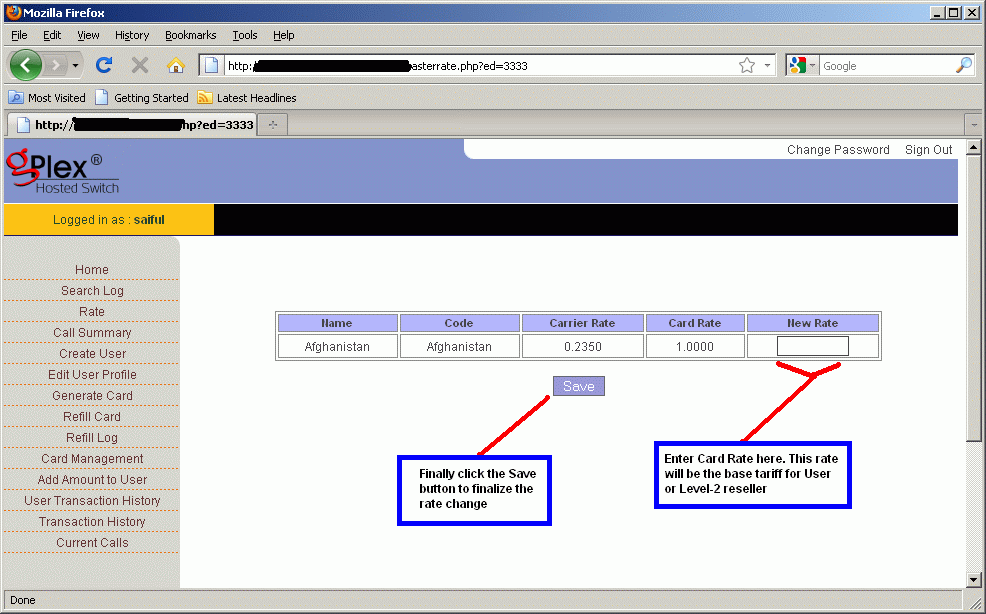
  • After clicking on the Edit link for any destination, the following screen will appear (click to enlarge).
  • In the field New Rate enter new rate for the destination which will be Level-2 / User's base tariff.
  • Finally click on the Save button, changed rate would be saved.


Show Dialing Plan:
  • After clicking on the Show link for any destination you will see a new window like the following picture.
  • Dial Digit means dialing plan (code) for the destination.


Add new rate plan:
  • Click on the Edit User Profile from the left side menu you will see all details of the clicked user. At the bottom of the page beside Rate Plan there's a button "ADD". Click on this to add additional rate plan.
  • Remember the user's default rate plan. Now select other rate plan (See the picture below) except the default.
  • In the Dial in Prefix field enter some prefix. For example, if the default rate plan for Bangladesh is 88 for Rate plan A. Than to add rate plan B as additional plan enter 00 on the Dial in Prefix field and client will dialer 88..... and 0088...... (this way). When they dial with 88 the call will go through Rate plan A and for 0088 the call will go through Rate plan B.
  • After adding new rate plan click on the Add button at the bottom of the page.


For other further details fill free to contact us or if you have any comments just type your comments below, it will be highly appreciated.
Diroo

Other related posts:

Monday, April 18, 2011

Level-2 Reseller or User Management in gPlex

Creating Level-2 reseller or User account in gPlex Switch is easy. Level-2 reseller can be created from Level-3 reseller. Take a look at the following steps:

Creating New User:
  • From your Level-3 homepage click on the Create User link at the left side.
  • Enter all details information in the required fields.
  • On the User field type reseller user name / login.
  • Password and retype Password and Name on the next three fields.
  • Select Account Type - Prepaid or Postpaid.
  • Enable Create Sub User means that you are permission to Level-2 reseller to create Level-1 reseller or Sub user. If you disable it than the user won't be able to create any Level- reseller.
  • Enable Generate card option to give permission to the User to generate new card / PIN.
  • Zero Bill CDR - Keep it Y.
  • Free Seconds - Apply for only when call get connected.
  • Set Pulses (F. ulse, N. Pulse) for the reseller.
  • Provide your user Secret. This secret will be the user's own secret. Provide this secret code to your user that he can create sub user or generate PIN.
  • Finally click on the Create User button to finalize the creation.
(Click on the following screen shot o enlarge)


Edit User Account:
  • Click on Edit User Profile. The following screen will appear.
  • Here you will see the list of all users.
  • Click on the User Name you want to edit.
Here you will see all remaining balance of all user account. Password and Secret for every reseller account can be change from here.


After Clicking on the User Name you will be taken to the following screen.
User Name can't be edited. Except it other information's can be changed. Change whatever you want to. Rate plan can also be change or extra rate plan for same user can be added. Click on the Add button beside Rate Plan. After successful change just click on the Save button at the bottom of the page. All changes will be saved.


Add Balance to User:
Click on Add Amount To User.
  • The following page will shown. At the top f the page select user first which you want to recharge.
  • Enter amount you want to recharge in the Amount field.
  • Enter some Description / Memo / Note in the Narration field.
  • Select Refill type from the below.
  • Finally press the Submit button to add Payment to user.


Transaction History of User:
Click on the User Transaction History.
Select User, Enter Start date, End Date and click FIND button.
All detail transaction history of the selected user fro the date you entered will be shown.


This are the most common basics thing need to create and maintain Level-2 reseller or User account in gPlex Switch reseller sytem.
You can read more basic VoIP Tutorial about VSR System, gPlex Switch etc from the right side of the BLOG. These will help new user's a lot.

More post about gPlex VoIP Tutorial:

Tuesday, April 12, 2011

gPlex Switch Reseller Card Management

Generating, Management, Editing... of card / PIN in gPlex switch's is little bit different than VSR System (VoIP Switch Reseller System). In VSR System PIN number can be generated only in Level-1 but in gPlex Switch Reseller, PIN can generated in Level-1, Level-2 and eve in Level-3 or Master reseller.
The process in gPlex is not so hard, According to my opinion its little bit easy then VSR System. But there's some limitations. In VSR System PIN (both user name and password) can be edited but gPlex PIN can't be edited after generating.

Lets take a look at the whole process. You can see at the right side navigation menu of this blog (VoIP Tutorial section) to see more details about VSR System.

Generate Card in Level-3 reseller:
From your Level-3 / Master reseller Homepage go to the Generate Card section at the left side. The following page will appear (Click to enlarge).
  • Select your User (Level 2) for whom you want to generate card.
  • In the Value of Card field enter the amount of card. Suppose 5 $, 10 $, 50 $ or 100$ etc..
  • Enter the Total number of cards you want to generate.
  • Enter your secret in the Secret field. You will get your reseller account's secret from your provider. Always use the secret of your logged in reseller. If you are generating cards from Level-3 than enter only your level-3 secret.
  • Click the Generate button. Within seconds your desired PINs would be generated. You will see your generated PINs. Remember one thing, your PIN could have only PIN number or even PIN number + Password. If there's only PIN number than use the PIN number as password also. Ask your provider for more details.


Card Management:
Click on the Card Management section of your reseller, you the a page like the following screen shot.
You will see several lot of PINs date wise. The date is when the PINs were generated. User is during generation which reseller you selected. Than you will see No of cards, Total remaining value of cards, Used amount etc.
Click on the date or reseller name to see more details about that Lot.


After clicking on the Date or User name you will see the following screen. Every PIN of that Lot, their Serial number, Balance, Card number, Password, Used amount, remaining amount, Active / Inactive status etc.


How to Recharge or Refill card:
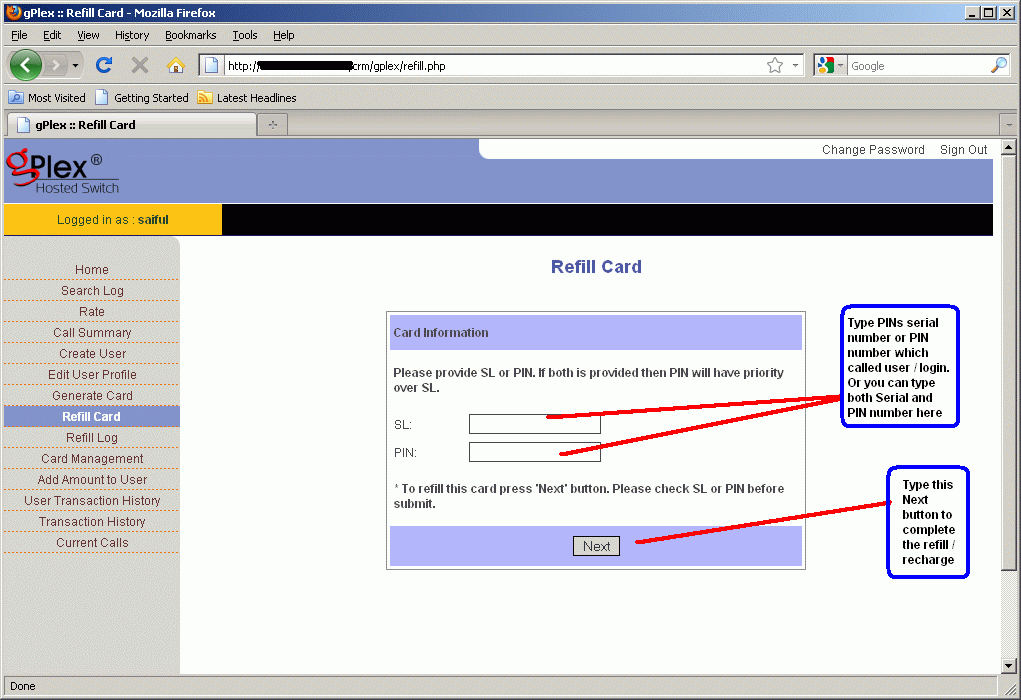
Click on the Refill card section to recharge a PIN or card. The following screen will shown.
Enter the Serial number in the SL field or enter the PIN number in the PIN field. Or even you can enter both of them.
Now press the Next button.


After pressing the Next button you will see the following screen. Here you will see all details about the PIN / Card you want to refill.
Enter the amount you want to recharge in the Refill Amount field.
Enter some narration / notes / memo en the Narration field.
Press the Refill button to finalize the refill. You will a confirmation message on the screen.


Card Refill History:
Click on the Refill Log section at the left side. Enter your PIN number for which you want to see refill history. Enter Start date and End date. and press the search button. You will see details record of the card recharge in row and column.


You can apply the above process for gPlex Level-2 and Level-1 reseller account. I think the process is little bit easier than VSR System. What do you think ? You can submit your comments below. And if you have any kind of questions regarding this matter. feel free to mail me.


Other posts related to that topic
:

Tuesday, April 5, 2011

Level-1 and Level-2 Reseller in gPlex

How to maintain Level-2 reseller and Level-1 reseller in gPlex Switch reseller system, I am going to discuss briefly for new gPlex Switch reseller users and sub-users in this post. Some basics about how to monitoring Reseller account will be discuss also.


gPlex Reseller Level-2 / User:
  • Type your level-2 login address (for gPlex every level has different login address) in the address bar of your browser and press ENTER.
  • The following page will appear (follow the screen shot).
  • Enter your User name in the User field.
  • Enter your Password in the Password field and press the Submit button.
  • You will enter your Level-2 reseller Homepage.


User / Level 2 reseller Homepage:
Take a look at the following screen shot (Click on this picture to enlarge). At homepage you will see Today's Report and Account Status. In Today's report you will see your total Sub users (level-1) total calls duration, revenue, reseller costs, ASR (Average Success Rate), ACD (Average Call Duration). You can see previous day's report or before that day's report or even report of last week or as you like. In the Account Status your will see your own account balance, Used balance, remaining balance etc.
Take a look at the left side navigation menu.
  • Rate: Click to see the your reseller rate plan.
  • Card Management: Click to see your generated cards, add balance to card, lock or unlock card.
  • Create Sub user: Level-1 reseller or Sub-user can be created from here.
  • Sub User List: List of all created Sub-user or Level-1 reseller account.
  • Refill to Sub User: Add amount or balance to sub user.
  • Sub User Transaction: To see details payment history of Level-1 user.
  • Generate Card: New Card generation
  • Refill Card: Refill or recharge specific card / PIN.
  • Refill Log: Card refill / recharge history.
  • Transaction History: Your Reseller Level-2 transaction / Payment history.
  • Current Calls: Click to see current active calls with details.


gPlex Reseller Level-1 / Sub User:
  • Type your level-1 Login address (for gPlex every level has different login address) in the address bar of your browser and press ENTER.
  • The following page will appear (follow the screen shot).
  • Enter your Sub-user Name in the User field.
  • Enter your Password in the Password field and press the Submit button.
  • Your Level-1 reseller Homepage will appear.


Sub User / Level 1 reseller Homepage: 
Take a look at the following screen shot (Click on this picture to enlarge). After logged in your homepage you will see Today's Report and Account Status. In Today's report you will see no of total calls, total minute, bill, ASR (Average Success Rate), ACD (Average Call Duration). You can see previous day's report or before that day's report or even report of last week or as you like. In the Account Status your will see your own account balance, Used balance, remaining balance and Status (Active / Inactive).
Take a look at the left side navigation menu.
  • Report: Click to see see report of daily usage.
  • Rate: Click to see the your reseller rate plan.
  • Generate Card: New Card / PIN generation
  • Card Management: Click to see your generated cards, add balance to card, lock or unlock card.
  • Refill Card: Refill or recharge specific card / PIN.
  • Refill Log: Card refill / recharge history.
  • Transaction history: Your Reseller Level-1 transaction / Payment history.


Other related post:

Wednesday, March 30, 2011

gPlex Hosted SoftSwitch Master Reseller Basics

One of the scalable and comprehensive SoftSwitch in the market to handle VoIP (Voice over Internet Protocol) call termination is gPlex Hosted SoftSwitch.

In this post I am going to discuss some common and important basics about Master / Level-3 Reseller of gPlex Switch Reseller System.

gPlex Login:
Click the following screen shot to enlarge. Type your reseller link or IP in the browser address bar and press enter. Type your Master Reseller accounts correct User name, Password and press Submit button or enter.


Changing Password:
  • After logged in using your user name & password click on the Change Password link at the top-right corner of your reseller homepage.
  • Change your password providing your old and a new password.
  • Click on the picture below to see how.


Master Reseller Homepage:
After logged in to your reseller account you will see a page like the following screen shot.
Total number of your active user's (Level-2), their call history, revenue, reseller cost, ASR (Average Success Rate), ACD (Average Call Duration) etc will shown on Homepage.

  • Last Day: You can see last day reports clicking on the Last Day link, Previous one week report, Specific day or others.
On the left side navigation menu:
  • Search Log: Click on Search Log to see detail calls history of your users.
  • Rate: Below Search Log click on the Rate to see your Base Tariff (carrier rate). You can edit your Card Rate here. The rate plan section in gPlex is different than VSR System.
  • Call Summery: Click here to see daily call summery to various destinations. You can see previous days history too.
  • Create user: To add new User (Level-2 reseller account) click here.
  • Edit User Profile: To edit existing user, Making it active / inactive, Changing Password / Secret or changing some other options about reseller click here.
  • Generate Card: Click on this link to generate new PIN / Card number.
  • Refill Card: To refill or add balance to any generated Card / PIN number.
  • Refill Log: Refill / Payment history of your Cards / PINs. Click on this link and select the "from" and "to" date and press Show.
  • Card Management: Click on this link to see all your resellers (user / level 2) Card number.
  • Add Amount to user: Click to add amount or balance to your user.
  • User Transaction history: Level-2 reseller account payment history, you can see date wise.
  • Transaction History: This link will tell you your total payment record that your provider gave you.
  • Current Calls: This is link that you can see your current reseller calls.


Related posts:

Tuesday, March 22, 2011

IP to IP Call Termination in VSR System - Adding GW Client

In this post I am going to discuss how to add IP in VSR System (VoIP Switch Reseller System).

For IP to IP call termination in VSR System you need to create GW client from Level-1 reseller. The level creation is same as before I discussed in some of my previous posts. You can take a look at the VoIP Tutorial section in this blog. These will help all new users.

IP can be added in Level-1 Reseller account. As we saw that we can create PIN or GK/Register Clients or Common Clients or even PC2Phone Clients in Level-1. Similarly in VSR System IP address (Internet Protocol) can be added in Level-1 reseller account.
Level-2 will give permission to Level-1 and Level-3 will give permission to Level-2 and the Admin will give permission to Level-3 to add GW Client.


Level-1 Homepage (for GW Client):
Click the following screen shot to enlarge. This is the Level-1 homepage, log in using your VSR user and password the following screen will appear.
  • At the left side click Active Calls to see current calls.
  • Click on Base Tariff to see your provider Base Tariff.
  • Click on the Show link below GW Client to show your current added clients.
  • To add new Client click Add below "GW Client".
  • A new page will shown.


Add GW Client in VSR System:
  • Click on the Add link below "GW Client"
  • A new page will appear containing lots of blank field.
  • In the Login field enter the GW Client login name.
  • Enter password in the Password field.
  • Leave Calls Limit blank to give no limit to number of calls.
  • Select the Active check box.
  • In the connection properties select your default Codec system.
  • The default could be G729, H711A, G711U etc.
  • Select Tariff and finally click on the OK button to finalize the creation.


Show Added GW Client in VSR System:
  • Click an the Show link to show added account.
  • Click the following picture to enlarge.
  • For every created account you will see their balance, calls limit etc...
  • Click on the account login name to see more details.


How to add IP and payment:
  • Click on the GW Client's login name.
  • You can edit the account.
  • On the right side type the IP address in the provided box (see screen shot)
  • Click on Add to add IP (for example 000.000.000.000).
  • You can add more than one IP and also can add a range of IP (enter start and end range and click add).
  • To remove an IP select the IP and click on Remove Selected.
  • To add balance click on Add Payment button, a new window will appear. Enter amount, date end press Add.
  • Finally click OK to finalize the process.


Now start IP to IP call termination. Before starting make sure all reseller settings are OK and all account must have balance.

Other related topics:
Create Single and Multiple GK/Register Clients
Create Single and Multiple PC to Phone Clients


Share/Bookmark